
×

OPENR LINK FAQ

MULTIMEDIA

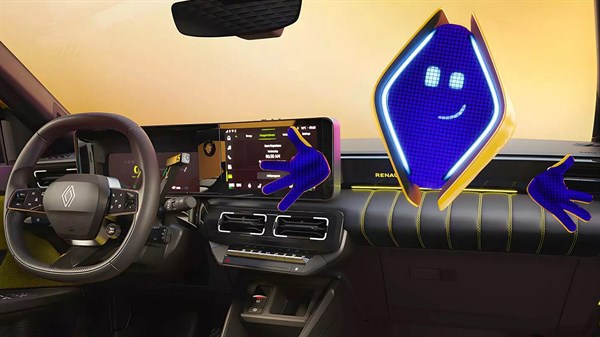
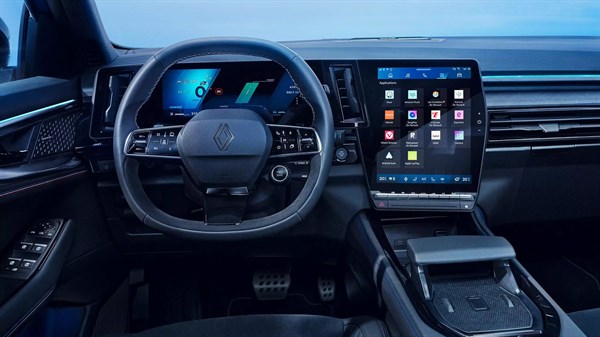
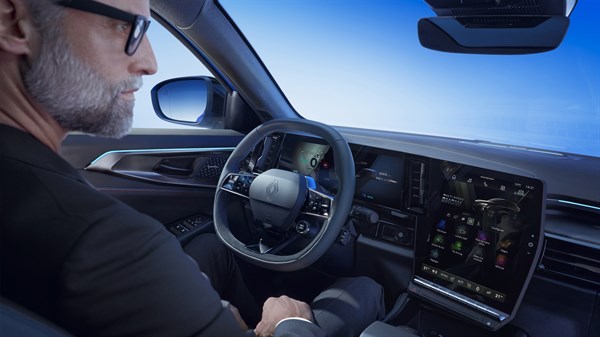
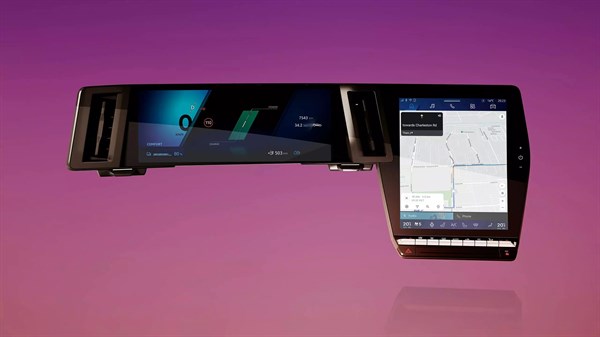
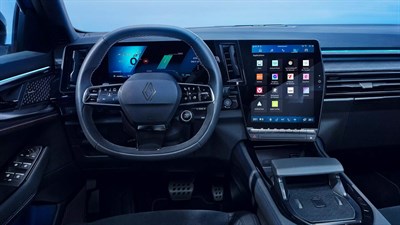
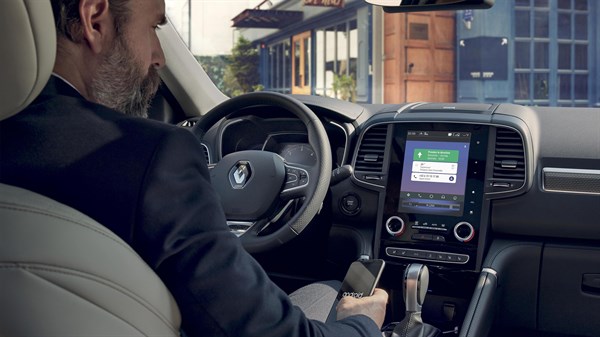
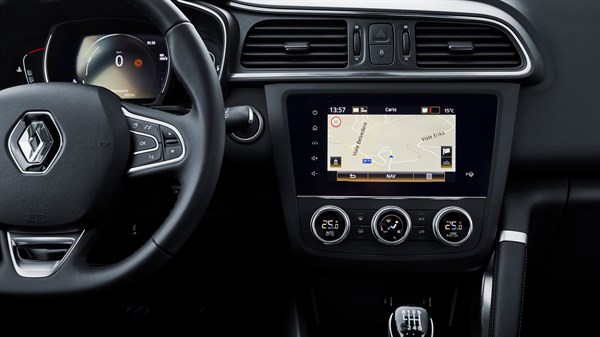
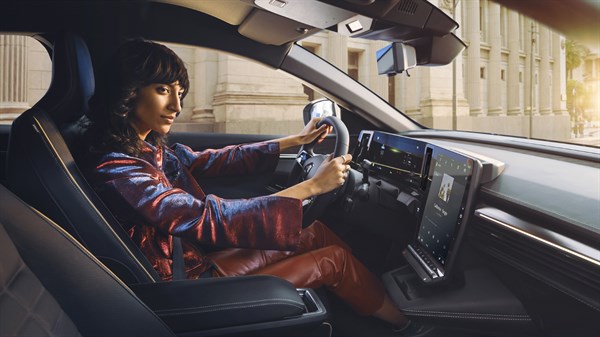
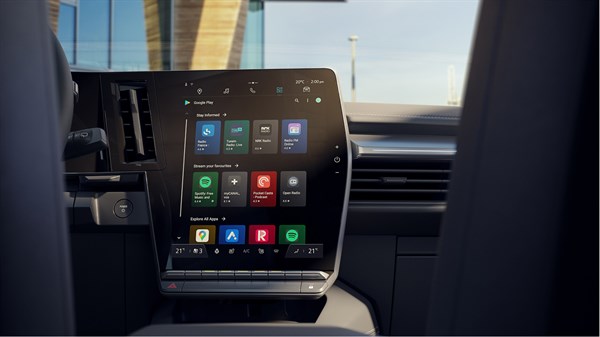
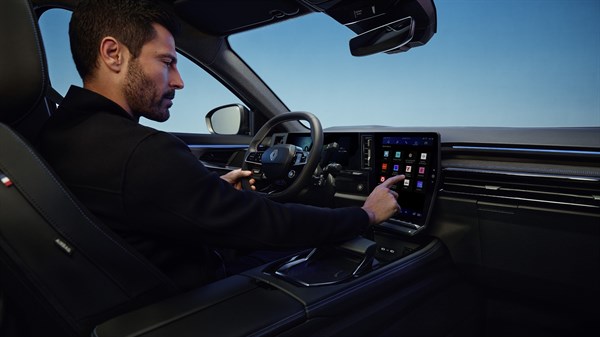
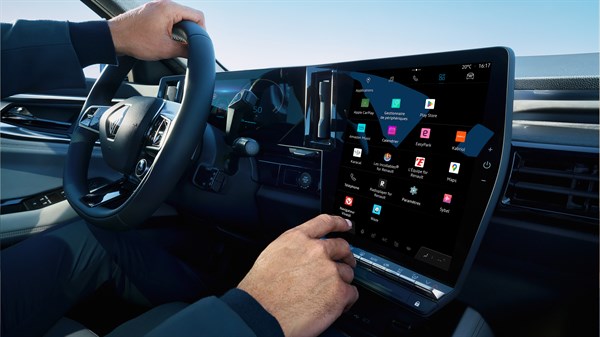
openR link opens up new driving horizons. Connect your smartphone, listen to your favourite music, access connected assistance.

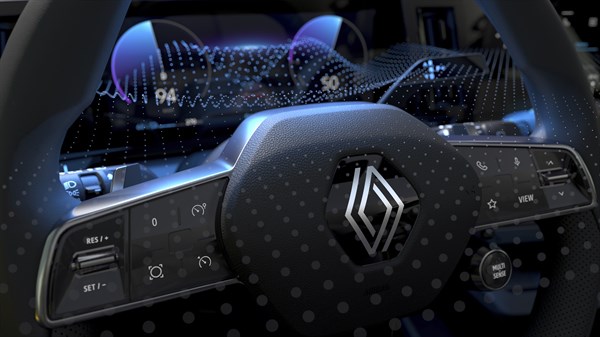
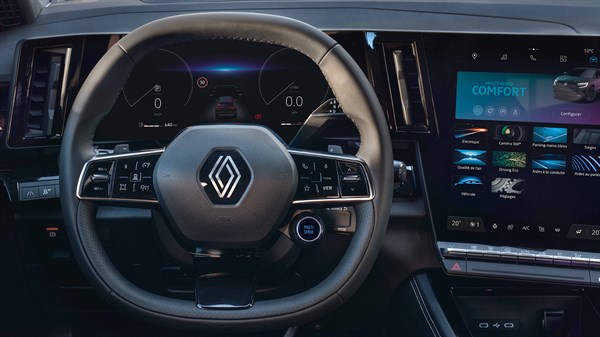
You can personalise your dashboard (view mode, widgets) using the buttons on the steering wheel. For example, you can select a minimalist display or mirror your navigation app screen. .

Add  widgets*  to create the openR link system that works best for you. They give you direct access to your favourite features.
Configure your widgets in  5 quick steps:

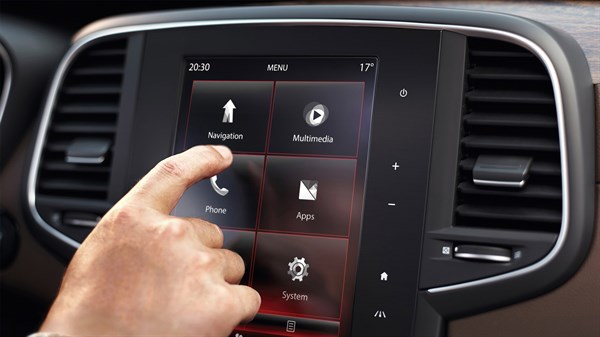
  1. On the main screen, press for a few moments on the widget space that you want to change.
  2. Find the new widget in the list and select it to create a shortcut on the main page.
  3. Resize widget icons if necessary.
  4. Return to the home screen.

*  you can select 2 or 4 widgets depending on which openR link version you have.

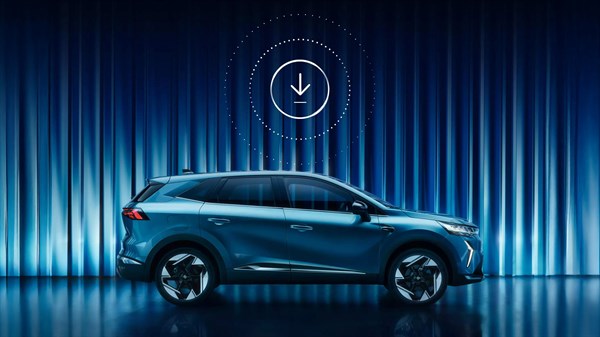
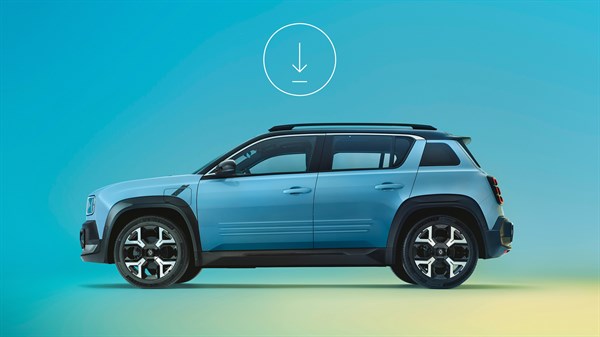
You will get an automatic notification when a new version of openR link is available.
Your openR link multimedia system updates automatically as soon as you accept the prompted update. No need to connect to anything.

Your maps are updated wirelessly and automatically .

You can activate  voice command  in 3 ways:

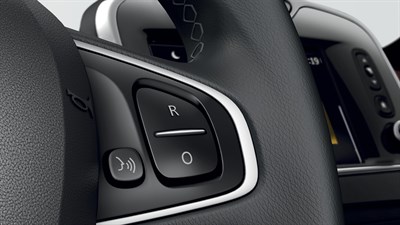
  • Using the button on your steering wheel
  • By saying “Hey Google”
  • By tapping on the shortcut on your central screen

You can activate  voice command  in 3 ways:

  • Using the button on your steering wheel
  • By saying “Hey Google”
  • By tapping on the shortcut on your central screen

Access your Vehicle’s universe from the icon bar at the top of your screen. Select settings, then tap on Google then Google Assistant . You can then select the language of your choice for the voice assistant.

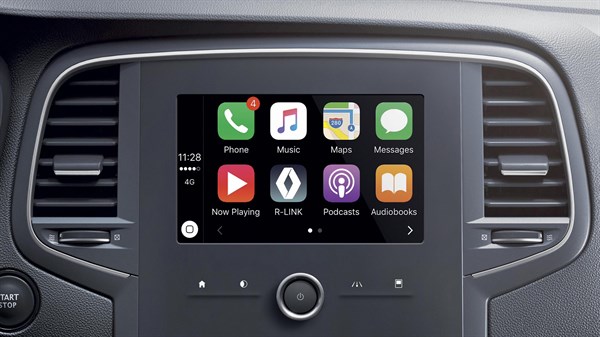
  • Apple CarPlay™

To use Apple CarPlay™, you must have an iPhone 5 or later, equipped with iOS  version 7.1 or later.

  • Android Auto™

To use Android Auto™, you must have a phone equipped with Android version 5.0 (Lollipop) or later.
Tip: Don’t forget to perform updates when they are available to ensure that your smartphone is compatible.
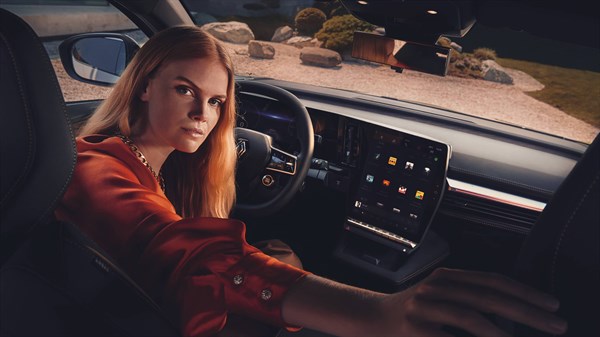
If your openR link screen malfunctions, contact Renault Customer Support.

CONNECTED SERVICES

Unlock the full potential of your Renault and Google connected services with openR link.

Your Renault professional will sort it out for you! Your connected services are activated during your vehicle handover. For more information, contact our Renault Customer Support.

Some services may be used directly on your openR link system. For others, you need to download the My Renault app. Download it on your Android or iOS smartphone and create your My Renault account.
You can find information about your services in the Renault Connect Store.

Tip: to use your services, make sure your vehicle is in a network coverage zone.

To find out whether connected services are activated:

  1. Log in to your My Renault account.
  2. If not done when your vehicle was delivered, synchronise your vehicle with your My Renault account.
  3. Go to the  Contracts page of your My Renault app. The status for each service is listed.
  4. To activate your services, make sure that data sharing is enabled, and that your openR link system’s connectivity is activated.
  5. Check that your vehicle is in a network coverage zone.

In the event of malfunction, contact Renault Customer Support.

Renew your connected services using your computer or your smartphone. To do this, select the vehicle for which you want to renew your contracts and tap on the Renault Connect Store tab. You can then see the catalogue of services. Follow the indicated steps to renew your services.

To temporarily deactivate your vehicle’s connected services, manage your confidentiality by deactivating data collection. You can do this as follows:

  • Refuse data collection in the window that is displayed when changing your profile.
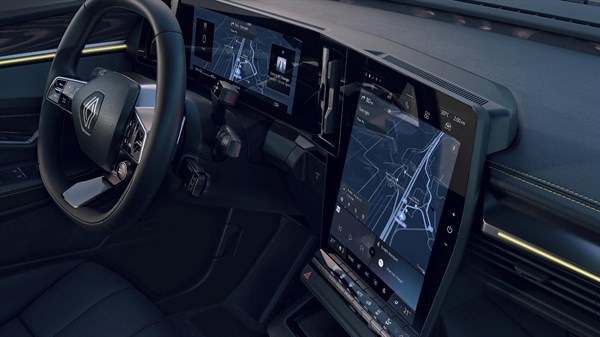
  • At any time, by accessing the settings in your  Vehicle’s  universe. Then tap on  Network and Internet, then  Connectivity. You can then edit your selection.
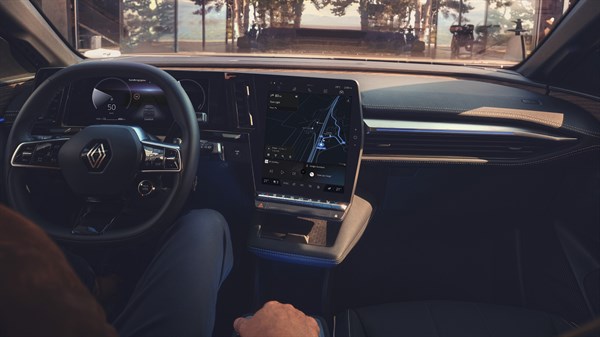
A personal hotspot lets you connect to the Internet by tethering to your smartphone’s mobile data . You can use your vehicle’s connected services in this way.

You get  3 GB* with openR link to use apps downloaded from Google Play. You need to  renew your plan  if you have already used up this data plan. Go to the ORANGE portal to purchase one of its data options. Or tether to your phone’s data plan via a  personal hotspot.
*  valid for 6 months.

Renault and Google need some specific data, such as geolocation, to be able to function. For more information, please read your Renault personal data policy.

If your connected services are not working, first of all check that you have agreed to  data sharing. Without this, your connected services will not be available.
To use My Renault remote services, make sure you have synchronised your My Renault account with your vehicle correctly. If the problem persists, contact Renault Customer Support.

Do you want to protect your data when you sell your car? Follow these instructions.

  • Get into your car.
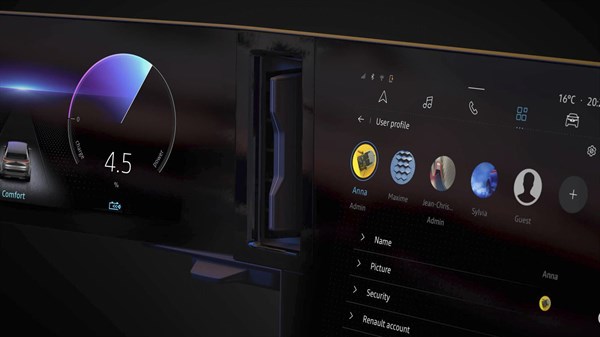
  • Go to your profile via the notification centre.
  • Tap on the wheel icon located on the top right-hand corner of your screen and delete your profile.

You also have the option of resetting your multimedia system to restore  factory settings. To do this, from the administrator account:

  1. Access your  Vehicle’s  universe.
  2. Tap on  Settings,  then  System  at the bottom of the list. 
  3. Then select  Reset options  and  Factory reset.
  4. Finally, tap on  Reset  at the bottom of the window displayed.

Your car is ready for resale!

PROFILE MANAGEMENT

Create and manage your My Renault, Google and ORANGE profiles for a comprehensive and customised multimedia experience.

To use your My Renault application’s connected services, your smartphone must have an OS version equivalent or higher than:

  • Android 6.0
  • iOS 11.0

our dealer will help sync your My Renault account to your vehicle on the day that it is delivered:

  1. Get into your Renault.
  2. During the steps to configure your profile, enter your My Renault login information (email and password). Make sure that you have closed your My Renault app.
  3. Your vehicle is now synced.

Yes, you can add several cars to the same My Renault account.
To do this:

  • Launch the My Renault app.
  • Tap on the  Car  icon in the bottom left-hand corner of your screen.
  • Scroll down.
  • Click on  Add a car.

Find and manage the list of vehicles linked to your My Renault personal account whenever you want.

No, you cannot link the same vehicle to several My Renault accounts.

UPDATES & NAVIGATION

To update your R-LINK 2 and its content (system, maps, applications):

Step 1: Start by saving your R-LINK 2 data on a USB stick

  • In your vehicle, connect your USB stick (minimum 8 GB), then turn on your R-LINK 2;
  • Wait for two minutes, then remove the stick. A file named “R-LINK” should have been created.

Note: There is no message signalling that the data has been saved.

Step 2: Synchronise the data collected (copy) on the R-LINK Store

  • To synchronise your R-LINK Store account with your R-LINK 2, log in to your My Renault account;
  • Click on the “R-LINK Store” icon, then on the “Home” tab, click on “Download the software for R-LINK 2 for Windows/Mac”;
  • Install the R-LINK 2 Toolbox.

Step 3:  Update the system and/or maps

  • In your R-LINK Store account, click on “Access updates” if this heading appears;
  • Click on “Update”, then read the instructions.

Step 4: Downloading

  • Launch the R-LINK 2 Toolbox, then insert your USB stick (minimum 8 GB) containing your vehicle’s initial data (copy);
  • Click on the vehicle in the top right of the R-LINK 2 Toolbox in order to check that it is correctly recognised, then click on “Back” to access the downloads;
  • Select and then launch your downloads. Make sure that your computer does not go into standby mode during this operation;
  • Once the download has been completed and approved, you can then remove your USB stick.

Step 5: Install the updates on your R-LINK 2

  • Insert your USB stick inside your vehicle, start the engine, then turn on R-LINK 2;
  • Click on “Yes” to accept the installation whilst leaving the engine switched on and the USB stick connected.

Note: In the event of a system update, R-LINK 2 will restart.

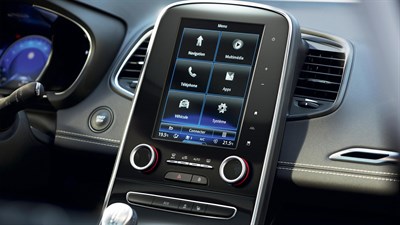
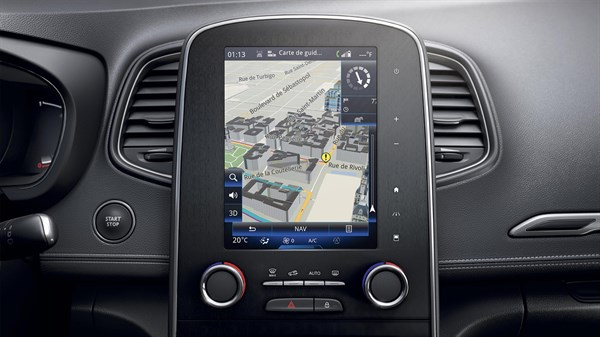
To launch GPS Navigation from your R-LINK 2 homepage, click on “Menu”, press “Navigation”, then “Destination”. If you want to access a specific destination, click on “Address” and enter:

  • Country;
  • Town and postcode;
  • Street;
  • Number.

Press “Select” and the navigation starts after a few seconds.

Note: You can find all your previous destinations and nearby points of interests (Petrol Stations, Car parks, etc.) in the Destination Menu.

To follow the process, you will need a USB stick (empty & 8 GB minimum) and a computer with Internet access.

Step 1: Digital copy of your system – In your car

  • First, go to your car with your USB stick, switch on the engine and your R-LINK 2 system;
  • Then insert your USB stick into your vehicle’s USB port and wait for 2 minutes;
  • You have made a copy of your system.

Step 2: Downloading a new map – On your computer

  • Switch on your computer, go online and log in to the R-LINK Store (please see the FAQ “How do I access the R-LINK Store?” if you need to). Do not insert your USB stick at this point;
  • Once in the R-LINK Store, a pop-up window appears if updates are available (if no pop-up window appears, your map may already be up to date. You can still check if a new map is available in the “Updates” section);
  • Select the item that you want to update and click on “Access updates” and then on update;
  • The R-LINK 2 Toolbox will automatically appear on your computer and you can now insert your USB stick. A list of available updates for your vehicle will be displayed in the R-LINK 2 Toolbox;
  • Then click on download to USB stick;

Note: Depending on the size of the maps and your Internet connection, the download may take some time.

  • Once the download has been completed, you can safely remove the USB flash drive.

Step 3: Installing the new map in your R-LINK 2 – In your car

  • Go to your car with the USB stick containing the new map. Switch on the engine and your R-LINK 2 screen;
  • Insert the USB stick and wait a few seconds for your R-LINK 2 to identify your USB stick;
  • R-LINK 2 will then automatically suggest installing the new map downloaded on your USB stick;
  • Simply tap “OK” to start the installation process;

Note: Do not use your R-LINK 2 system. Leave your engine switched on during the installation operation.

  • A message will tell you when the installation is complete. Click on “OK” and your map is now updated. You can use the new map immediately.

If your TomTom Live Traffic is not working properly, it may be that your free 3-year trial has expired.

You can check if your contract is still active in the R-LINK Store (please see our FAQ “How do I access the R-LINK Store?” if you need help).

In the R-LINK Store, go to the “My Applications and Services” section to see the status of your connected services contracts.

If your TomTom Live Traffic contract has expired, you can extend it by buying the full version available in the “Catalogue” section.

If you have an active contract but your TomTom Live Traffic is still not working, check in your car if data sharing is still activated on your R-LINK 2 system: Main menu / Apps / Privacy. Data sharing needs to be activated for TomTom Live Traffic to work.

If the problem persists, please try to update your software and map versions in the R-LINK Store in the “Updates” section. (Please see our FAQ “How do I update my maps?” if you need help.)

If the problems persist, call our Customer Support for help and indicate that you have already followed this procedure.

Videos to help you

Need a little help? Our tutorial videos are available to guide you through each step.

How do I set up my R-LINK2?

How do I pair my iPhone?

R-LINK 2 with Apple CarPlay™

How do I pair my Android smartphone?

R-LINK 2 with Android Auto™

R-LINK 2: Configuring an email account

Voice recognition

How do I answer the phone via R-LINK 2?

How do I programme a route?

How do I use voice control?

GO FURTHER

R-LINK EVOLUTION

Relax while driving!

Equipment, functionalities, services, updates, compatibility… Find all of the information relating to your R-LINK Evolution multimedia system.

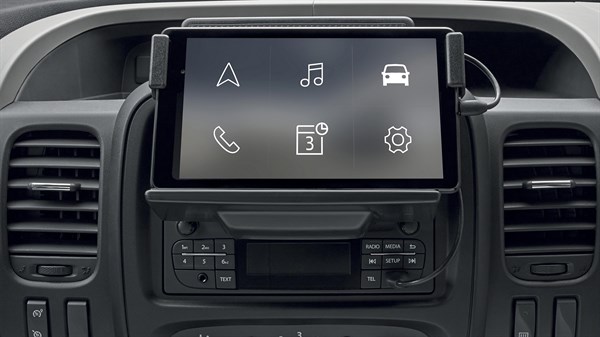
7” touch screen

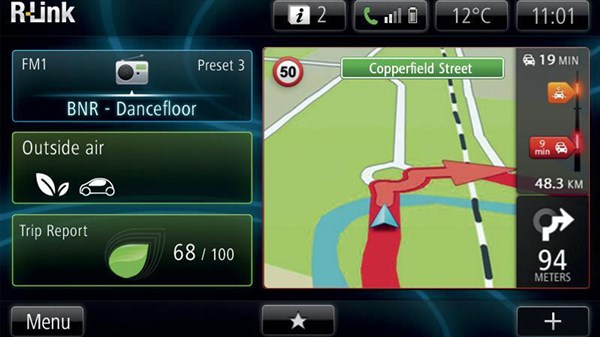
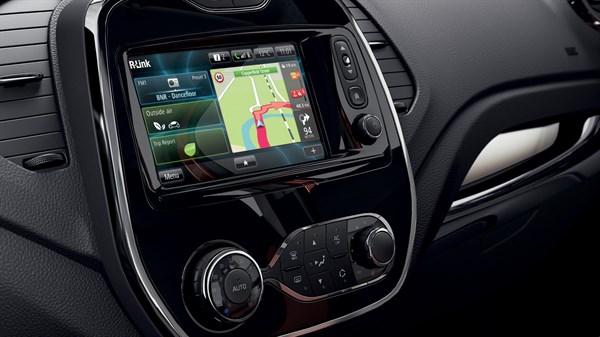
Harmoniously integrated into the dashboard, R-LINK Evolution features a 7″ screen with touchscreen technology identical to tablets with tougher resistance for automotive use.

R-LINK voice recognition

Using the steering wheel controls, with one touch and an audible beep, you can use your voice to launch an itinerary to one of your favourite destinations. No need to wait for system voice to ask you a question!

Renault driving ECO2

View a report on your journeys and driving advice to optimise your fuel consumption.

TomTom Europe maps

TomTom Europe maps cover 45 countries in high resolution images for practical directions, including through tunnels.

Control panel for air conditioning, driving assistance and more

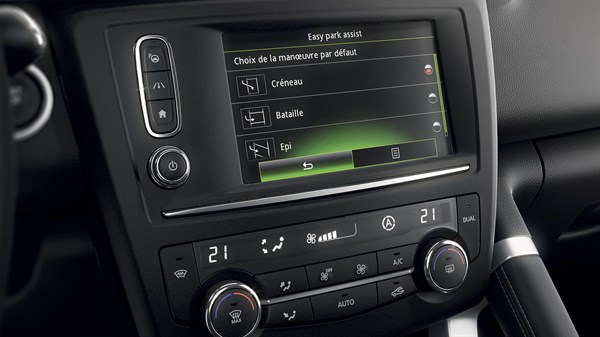
From your touch screen, control the temperature to the nearest degree, manage your reverse parking effortlessly with Park Assist® and easily access your audio and video sources thanks to the 2 available USB ports and Bluetooth on-board.

Depending on the model or the level of equipment of your Renault, choose your ambient lighting and your mode of driving from 4 Multi Experience pre-programmed modes: neutral, eco, comfort or sport.

electric connected services

Find all of the services for your electric vehicle!

Answers to all your questions about R-LINK 2

map renewal

Get the latest map updates for your R-LINK Evolution system.

find out more about the maps update   >

Vehicles equipped with R-LINK Evolution

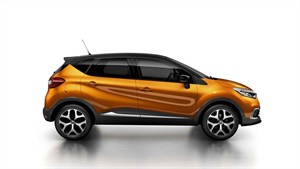
CAPTUR

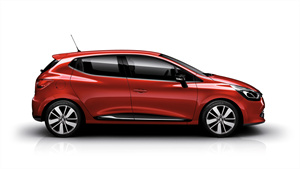
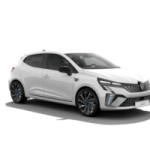
CLIO

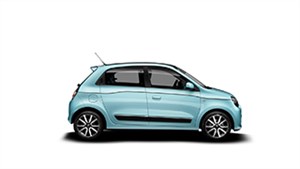
TWINGO

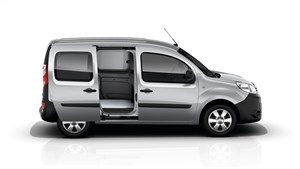
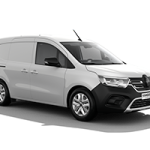
KANGOO

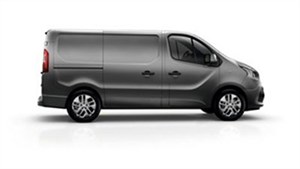
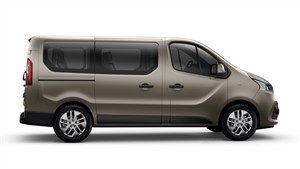
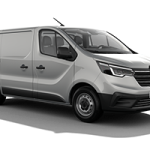
TRAFIC

TRAFIC Passenger

Need help?

User Guides

You can also consult the User guide.

view the e-guides

SYSTEM UPDATE USING FOTA

update your vehicle remotely with Firmware Over The Air (FOTA) technology

what is a FOTA system update?

Your car can be updated via FOTA (Firmware Over The Air) technology. It updates remotely just as easily as a smartphone.

The highest level of vehicle safety and performance is maintained via this technology, without having to go to the workshop.​​

Ultra discrete and almost totally invisible, FOTA updates are performed over the air via the GSM phone network.

how does the FOTA system update work?

Activate the system update in your vehicle equipped with openR link. Without having to go anywhere, you get the latest features and patches to reinforce the security of your equipment, apps and services.

WATCH THE VIDEO TUTORIAL TO FIND OUT EVERYTHING YOU NEED TO KNOW ABOUT YOUR FOTA SYSTEM UPDATES

what is a system update?

how do I install the system update?

what should I do if the system update fails?

what is a system update?

EXTEND THE EXPERIENCE

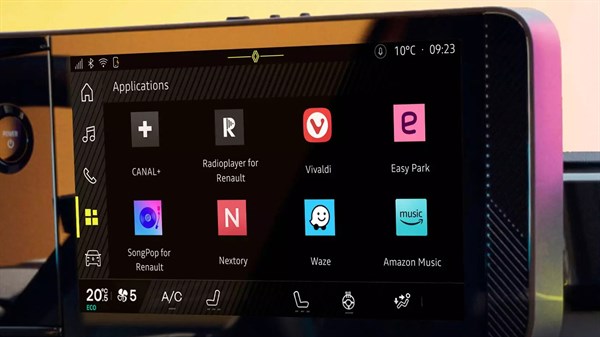
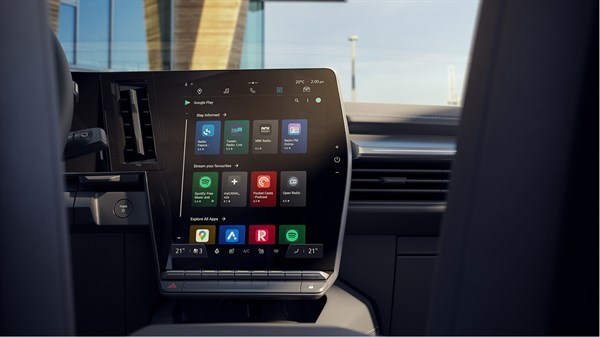
Your favourite apps available on openR link

all of your favourite apps available

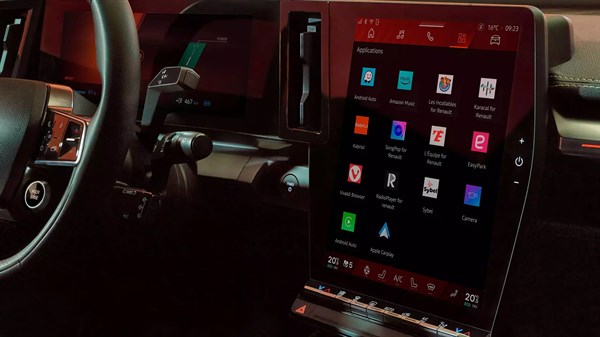
Enjoy your favourite apps available on your Renault’s openR screen. New apps will be added to the catalogue over time. Discover the apps currently available:

the advantage of in-car apps

Amazon Music, Waze, EasyPark, Radioplayer, and more. Your usual apps (depending on country) are available in your openR link multimedia system.

The size of your screen ensures optimum comfort. Apps are optimised for your use.

1. create your Google account and access it in your car

2. go to Google Play via the central screen and download the app in your Renault

3. to do this, just share the phone’s connection with your Renault*

4. open the app and follow the instructions to finish launching it

*you can also subscribe to a separate plan with our partner Orange, where the first 3 GB are free (valid for 6 months) (pay-as-you-go).

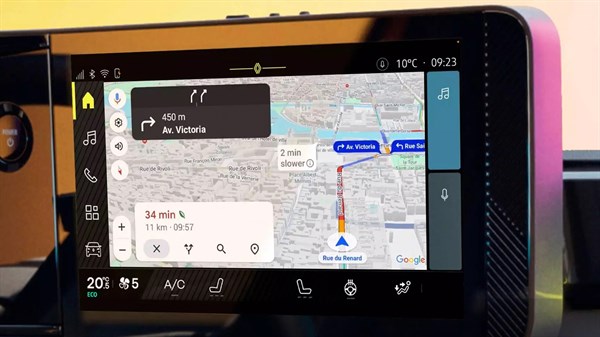
Road closures, a new one-way system, available spaces, paid parking, traffic information… avoid unpleasant surprises with apps in your openR link multimedia system.

WAZE

With Waze, you always know what is happening on the road. Even if you know the way, Waze will inform you instantly about the traffic, the police, accidents and much more. If you are experiencing heavy traffic, Waze will change your route to save you time.

KARACAL

Discover the hidden history of the buildings and landscapes that you drive past! Karacal gives you access to geolocated “sound bubbles” as you drive!

EASYPARK

Experience the future of parking with EasyPark in your Renault!

Our app helps millions of drivers by saving them time and money, while eliminating the hassle and stress of parking in urban areas. EasyPark is available in over 2,200 cities across Europe for on-street, off-street and garage parking.

music and podcasts

Play your favourite music, listen to audiobooks and podcasts, and use your favourite apps as you travel.
Your usual apps are optimised for and directly available in your openR link multimedia system.

AMAZON MUSIC

Access your music on the road via the Amazon Music app. Audio streaming lets you listen to music the way the artist intended: with the best sound quality possible. Listening is easy with a Prime subscription or subscribe to Amazon Music Unlimited to access even more content.

RADIOPLAYER

Get all your favourite radio stations live, anywhere, anytime. Listen to the best rap, rock, RnB, electro, classical and jazz hits, easily and instantly in France or abroad.

SYBEL

A single platform to find all your favourite podcasts, discover exclusive audio stories, audio books, thousands of hours of children’s stories, and more. Whether you are alone or with your family, get playlists adapted to every trip in your Renault Austral!

entertainment

Set the tempo of your journeys with exclusive apps, play Les Incollables, and learn about the monuments you see along the way.

Let our partner apps accompany you on your journeys.

VIVALDI BROWSER

A flexible and customisable web browser designed for your car. Vivaldi is your window to the web, available in your All-New Renault Austral E-Tech full hybrid.

KABIROL

A Renault exclusive, discover France differently. Your journeys become moments of discovery, adventure and pleasure for children with geolocated stories and questions.

LES INCOLLABLES® FOR RENAULT

Rediscover a Renault exclusive, the iconic Les Incollables® game: quizzes, riddles and challenges for the whole family. Travelling becomes a moment for sharing!

sports news

Follow your favourite sports and major events around the globe and don’t miss a thing during your journeys!

L’ÉQUIPE FOR RENAULT

Get all the live sports news in your car: follow the major European championships, the Champions League, the Top 14, the Davis Cup final, and much more.

and many more…

Other apps are available directly in your Renault. Log in to Google Play to discover them.
Regular updates are automatic.

GO EVEN FURTHER

Radio Connect R&Go help page

Need more information about your Radio Connect R&Go system?

Bluetooth®, updates & navigation, etc. Check out our answers to your frequently asked questions.

BLUETOOTH®

Connecting your Android smartphone to the radio:


  • Enable Bluetooth on your Android smartphone.
  • On the radio, press “Phone”, then select “Pair phone”. A timer starts, giving you around one minute to pair your phone with the radio.
  • On your smartphone, go to “Settings” then “Bluetooth” and run a device search.
  • The radio should be displayed in the list of devices under the name “R&Go MULTIMEDIA”; select it to proceed with pairing.
  • Wait until the radio and your smartphone ask you to confirm pairing. Confirm pairing by pressing “OK” on the radio and then “Pair” on your iPhone.
  • In the settings of the R&Go application, click on “Connect to the R&Go MULTIMEDIA car radio”.
  • On the R&Go home page, tap the “Settings” icon and then click “Connection settings”.
  • Press “Connect the R&Go MULTIMEDIA car radio”. Check that there is an icon on the “R&Go MULTIMEDIA” line. This shows that your phone is definitely connected to your radio.

Connecting your iPhone to the radio:


  • Enable Bluetooth on your iPhone.
  • On the radio, press “Phone”, then select “Pair phone”. A timer starts, giving you around one minute to pair your phone with the radio.
  • On your iPhone, go to “Settings” then “Bluetooth” and run a device search.
  • The radio should be displayed in the list of devices under the name “R&Go MULTIMEDIA”; select it to proceed with pairing.
  • Wait until the radio and your iPhone ask you to confirm pairing. Confirm pairing by pressing “OK” on the radio and then “Pair” on your iPhone.
  • In the settings of the R&Go application, click on “Connect to the R&Go MULTIMEDIA car radio”.
  • On the R&Go home page, tap the “Settings” icon and then click “Connection settings”.
  • Press “Connect the R&Go MULTIMEDIA car radio”. Check that there is an icon on the “R&Go MULTIMEDIA” line. This shows that your phone is definitely connected to your radio.

To create shortcuts on the main page, you need to go to the shortcut creation page where you will find six “+” icons. Tap “+”.

You can then add shortcuts for applications, contacts, R&Go features or even your favourite radio.

Note: Adding a radio as a shortcut requires an active Bluetooth connection between the R&Go application and the radio.

After installing the R&Go update, the R&Go application may not open correctly on your iPhone. To solve this issue, you need to completely uninstall the application then go back to the Apple Store and download the R&Go application again.

Tip: search the Apple Store simply using the word Renault.

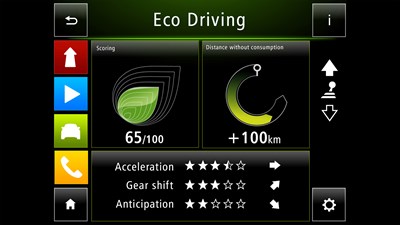
Select the driving behaviour widget in the widget menu to display

The widget is a real-time feature that will help you drive more smoothly and efficiently so you can reduce your vehicle’s CO2 emissions.

The top of the circle shows the level of acceleration (green, orange, red) with a smiley face in the middle to assess your driving.

The bottom of the circle displays the level of anticipation (in blue) and the time without acceleration is displayed in the middle

Compatible smartphones:

  • Android: version 4.4 and above
  • OS: version iOS 9 and above

Non-compatible smartphones

  • Windows Phone

UPDATES & NAVIGATION

Choose your favourite navigation application:

  • On the home page, tap the “Navigation” icon.
  • Tap the “Settings” icon.
  • Select the navigation application that you would like to save by default.

The WAZE logo is displayed by default on the shortcuts page.

Select the WAZE application as the default navigation application in the navigation menu > navigation settings, and select the navigation widget display in the widget menu.

You must have the WAZE application installed on your smartphone to use the WAZE widget from the R&Go widget. If it is not installed on your smartphone, when you click on the icon you will be redirected to download the app on Google Play or Apple Store.

The WAZE widget displays the following features:

  • Distance to destination
  • Prompts for left/right turns
  • Petrol stations and car parks near the smartphone
  • Voice navigation if using with a Bluetooth audio source

Our tutorial videos

First steps

Pairing an Android phone

Pairing an FR iPhone

Driving style feature

Waze

Consult our user guides

Radio Connect R&Go FAQ

COMPLETE USER GUIDE – NEW EDITION

COMPLETE USER GUIDE – OLD EDITION

Want to know more?

Multimedia system

Radio connect R&Go

Discover  >

Compatibility

Checking the compatibility of your phone

Check >

My Renault

your vehicle every day at your fingertips

your Renault‘s essentials in one app

Make the most of your Renault and easily manage your vehicle remotely. Discover all available services in your My Renault app.

Note: Some features of this application may not be fully available or functional at all, in all countries. Availability can vary depending on local regulations, services, and network coverage.

track your vehicle order in real time

As soon as you order your vehicle, you can track its progress in real time right up to delivery in the My Renault mobile app.

control your Renault from your smartphone

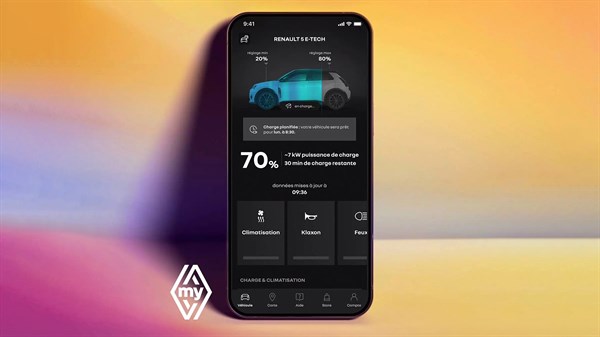
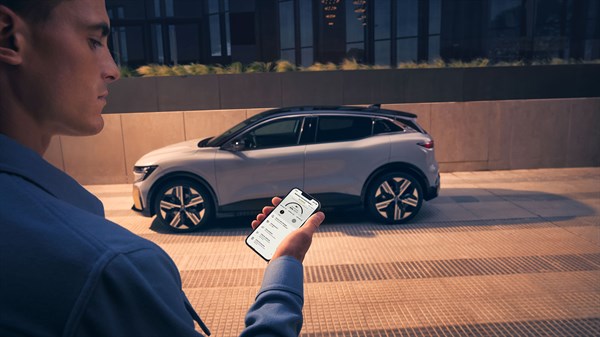
Save time with our remote commands and information. Set the temperature*, locate your Renault and much more from the comfort of your own home.

*option available depending on the vehicle version

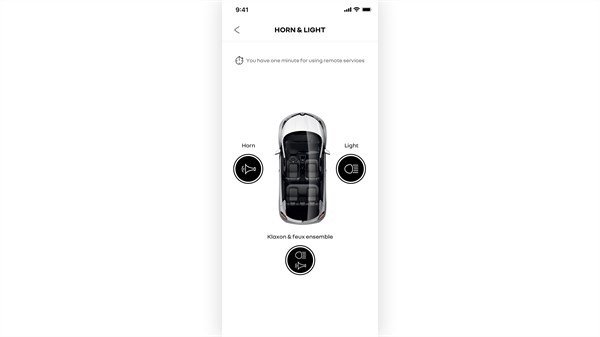
find your vehicle

activate the horn and lights to easily find your Renault

view the information about your Renault

remotely check door locks and tyre pressure

locate your vehicle

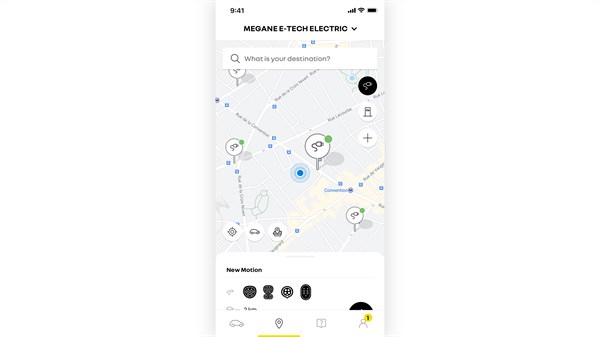
quickly locate your Renault on the map and view nearby points of interest

even more independence

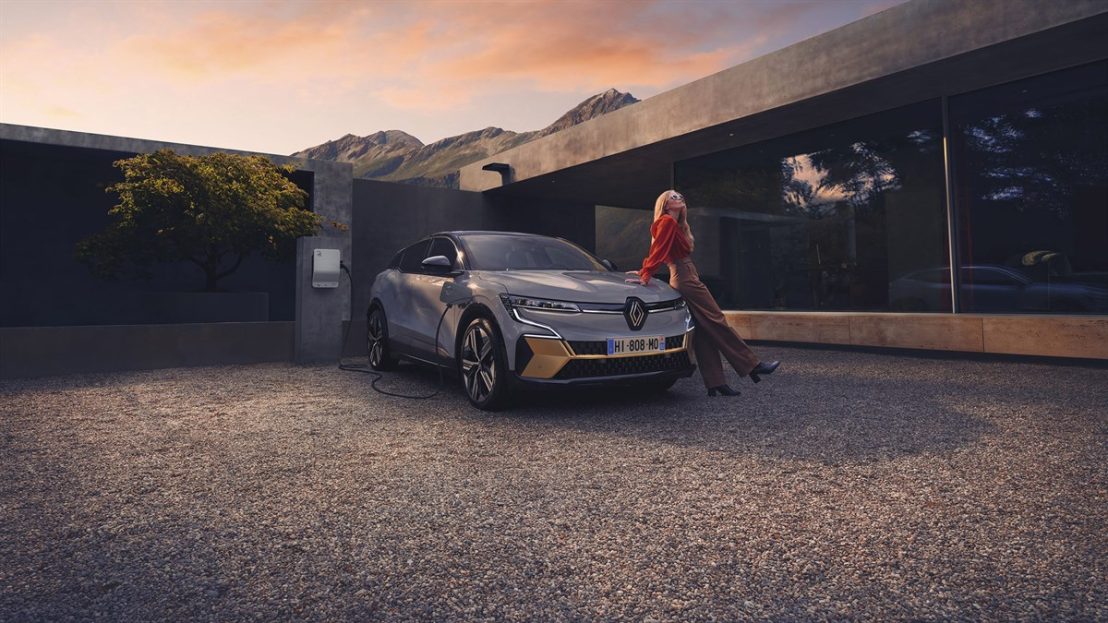
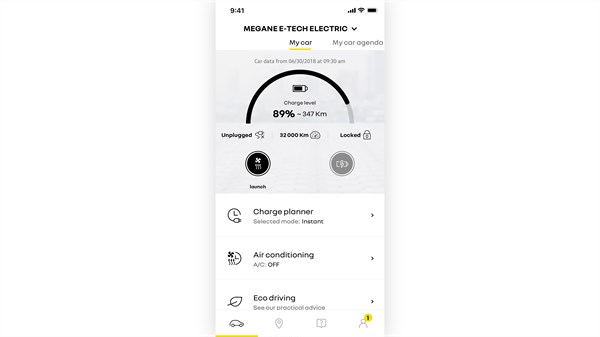
Program your charges remotely, check your driving range, set the temperature in the cabin, locate the nearest charging points and save on home charges… The My Renault app makes your daily life in electric easier.

keep track of your battery’s range

plan your charges and access your charging history

find out more >

power your electrical appliances

with Power to Object, bidirectional V2L charging

activate air conditioning remotely

and set the temperature in your cabin

start your My Renault experience

Step into the Renault world right now in just 4 easy steps.

1. download the app on the App Store or Google Play

2. create a My Renault account

3. add your vehicle to the app

4. synchronise your vehicle with your My Renault mobile app

discover our multimedia systems

openR link

our new intuitive, efficient and smart multimedia system

find out more >

easylink

100% customisable, 100% connected

find out more >

synchronise your vehicle with your My Renault app

your vehicle’s essentials in the My Renault app

Once synchronised with your vehicle, the My Renault app lets you remotely control your vehicle:

  • find your Renault
  • charge the battery and set the cabin temperature remotely
  • find charging stations nearby
  • plan your trip and navigate with integrated maps
  • see charging and battery status
  • …and much more!

do you have a vehicle equipped with the openR link multimedia system?

To synchronise your car equipped with the openR link multimedia system with the My Renault app, follow the steps below and watch the tutorial video.

Make sure you have downloaded the My Renault app onto your smartphone and created your account.

1. Sit in your car after closing the My Renault app on your smartphone.

2. Switch on your vehicle’s central display and accept data sharing with Renault.

3. Bring up notifications by sliding your finger from the top to the bottom of the screen.

4. Click on your user profile, then on My Renault account. Enter your My Renault username and password then click on “Connection”.

5. Open the My Renault app on your smartphone. Your car appears on your app’s home page, and your vehicle data is now visible.

do you have a vehicle equipped with the easy link multimedia system?

To synchronise your car equipped with the easy link multimedia system with the My Renault app, follow the steps below and watch the tutorial video.

First of all, make sure you’ve downloaded the My Renault app onto your smartphone, created your account and have your login details to hand.

Add your vehicle using the “car” icon at the bottom left of the screen and enter the vehicle identification number (VIN). This number appears on your vehicle registration document.

1. Get into your car. Make sure the motor is switched on and that you have network coverage.

2. In your My Renault app, press “sync My Renault”. Make sure that data sharing has been accepted on your vehicle’s multimedia screen. If not, follow the app steps.

3. In your app, press “start” and “continue”.

4. A 6-digit code appears on your car’s display.

5. Enter this code in your My Renault app.

also discover

openR link

find out more >

easy link

find out more >

safety by Renault

human first program

automotive safety by Renault

improving the safety of all road users

Data sharing, crash tests, full-scale drills… Renault is committed to reducing the number and severity of accidents.

Its “Human First Program”, developed in conjunction with researchers, experts and firefighters, has only one objective: to improve the safety of all road users every day.

In 2025, Renault takes safety a step further with the universal patent initiative by opening its safety patents to competitors.

up to

32

advanced driver-assistance systems

over

60

safety features

over

2000

safety patents filed(1)

over

5000

safety patents filed(2)

(1) since 1969
(2) in 21 countries

Renault and firefighters, a unique partnership

Within the framework of the Human First Program, Renault has joined forces with the Naudet brothers, producers of award-winning documentaries about 9/11 and the Notre Dame fire, to highlight and visually express the extremely close collaboration between the Group and the road safety teams. This alliance between engineering and R&D constitutes an amazing adventure dedicated to “the golden hour”, the precious minutes when rescue workers have a greater chance of saving lives.


watch the documentary

firefighter training

The only manufacturer in the world to have appointed a full-time firefighter in engineering and the only one to collaborate regularly with road safety teams, Renault has trained 5,000 firefighters from 21 countries worldwide in just a few years! New courses are already planned in Europe and Latin America.

find out more about the collaboration with firefighters

6) urgent time window when patients must receive definitive trauma care

QRescue Renault: saving time for the emergency services

With a QR code on the windscreen and rear window, QRescue Renault gives firefighters immediate access to the vehicle’s ‘rescue sheet’. It provides firefighters with all the information they need to allow them to work efficiently and safely.

Find out more about QRescue Renault

Fireman Access

Even though our high voltage batteries are designed to ensure that they are not deteriorated by any intrinsic cause, a fire caused by external reasons is always possible. If a fire spreads to the battery, points to the heart of the battery where firefighters can direct the fire hoses, allowing battery fires to be extinguished in less than 10 minutes, compared to an average of 4 hours for other manufacturers. This saves approximately 42,000 liters of water per intervention and, most importantly, crucial time for emergency responders. In 2025, Renault takes safety a step further with the universal patent initiative by opening its safety patents to competitors.

discover universal patent

SD Switch*

To prevent the risk of firefighters being electrocuted, the “sd switch” instantly disconnects the battery from the high voltage network.

*available on Megane E-Tech 100% electric

in safety, cutting-edge vehicles

In 50 years, Renault has helped divide by 5 the number of victims on the roads. To continuously improve everybody’s safety, the experts from the LAB (Accidents and Biomechanics Laboratory) and the 600 engineers and technicians innovate relentlessly. In total, over 2,000 patents have been filed and a range of cutting-edge technological solutions like Fireman Access and the SD Switch have been developed.

adas (systèmes avancés d’aide à la conduite)

adas (advanced driver-assistance systems)

Advanced driver-assistance systems (adas) are intelligent systems that rely on advanced technologies (radars, cameras, artificial intelligence, etc.) to help drivers on their journeys. And yet 67% of drivers do not use driver-assistance systems unless they are activated automatically (2019 SSHRC study)

(7) lane departure warning, lane keeping assist, intelligent adaptive cruise control, cruise control/speed limiter

find more about adas

isofix (siège enfant)

restraint systems

Only 25% of children are fastened in correctly (10% not fastened in at all)*: this is why Renault equips its vehicles with innovative restraint systems to improve passenger safety.

*naturalistic studies/European projects/IBSR Belgian study

find out more about restraint systems

making progress in road safety every day

Created in 1969 by the Renault and PSA Groups, the LAB is an accident research and biomechanics laboratory that also studies human behaviour. Its mission is to reduce the number of victims on the road; in 50 years, it has helped to reduce the number of people killed to a fifth of previous levels.

find out more about the history of the LAB

winner of the Prix Innovation Sécurité Routière 2024

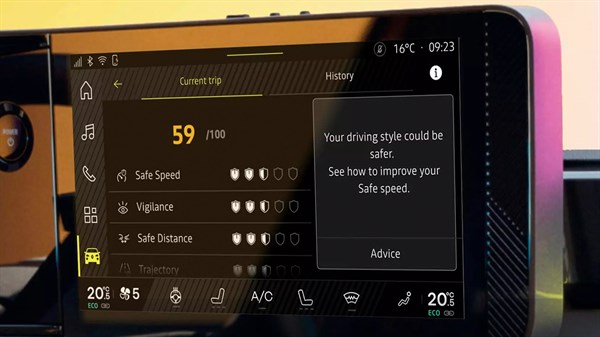
Winner of a Jury Prize at the Prix Innovation Sécurité Routière 2024, safety coach analyses potential risks on the road based on surrounding data and displays this information on the openR screen.

At the end of each journey, together with the safety score which assesses your driving, you will find a detailed analysis and simple advice on how to drive more safely.

find out more about safety coach & safety score

future mobility and safety

Renault’s road safety policy is broken down into 5 areas: raise awareness, prevent, correct, protect and rescue. Innovations are constantly emerging, for instance the Safety Score, the Safety Coach and the Safety Guardian, which are set to revolutionise safety behind the wheel.

vision 4rescue

Better anticipate, better respond and better communicate; these are vision 4rescue’s core objectives. The ecosystem relies on connected objects and complementary technologies to anticipate, limit risks and optimise intervention methods.

discover the demo car

learner driver speed‑limiting offer

52% of fatal accidents linked to speeding involve drivers under 35*. Renault encourages learner drivers to drive with care and demonstrates its commitment through a reversible learner driver speed‑limiting offer, allowing Renault Clio V to be limited to 110 km/h**.

*on tolled motorways. Source: ASFA, 2019–2023 period
**see eligibility conditions

H1st vision

H1 st vision embodies our vision for a safer future for mobility and the Research and Development of Renault’s Human First Program.
A collaborative concept-car created by the 12 companies in the Software République ecosystem. It embodies the vision of the future of mobility with technology contributing to the safety of all road users.

Find out about the concept-car

safety, ongoing innovation

To help reduce the number of accidents on the road, Renault is constantly innovating, with two very real strategies: preventing accidents and facilitating the work of first responders. New advances will revolutionise safe driving: Safety Score, Safety Coach, Safe Guardian.

find out about the innovations

ROADS driving simulator

A revolutionary tool to test the dynamic behaviour of a vehicle, driver-assistance systems and all the driver information systems, the ROADS
immersive simulator represents a great leap in safety research.

find out about ROADS

safety car = voiture de sécurité

also discover

Discover gamme Renault

gamme Renault  >

Renault newsletter

subscribe to the newsletter  >